
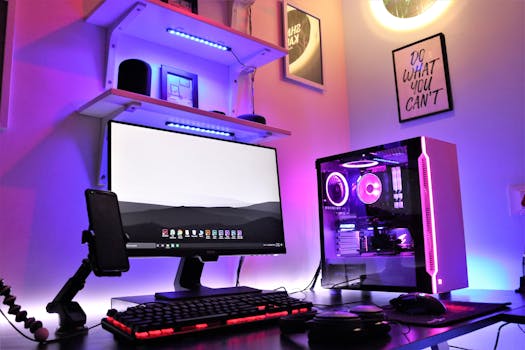
PC Gaming Build Guide: Expert Tips & Complete Walkthrough
Introduction
Building a gaming PC can seem daunting. Are you tired of sluggish frame rates and longing for a truly immersive gaming experience? Understanding PC gaming builds is critical in today's gaming landscape. The ability to customize and optimize your hardware provides a significant advantage over pre-built systems, allowing you to tailor performance to specific games and resolutions. From humble beginnings where pre-built systems dominated the market, a surge of enthusiasm fostered a culture of do-it-yourself PC building. This movement was fueled by the desire for better performance, customization options, and cost savings. With access to modular parts, gamers began to design and assemble their own high-performance gaming rigs. This shift was facilitated by the increasing availability of information and online tutorials which made PC building more accessible to a wider audience. The impact is undeniable: PC gaming now offers unmatched graphical fidelity, frame rates, and customization, attracting both casual and professional gamers. A real-world example is the rise of eSports, where customized PCs are a prerequisite for competitive success, enabling players to execute complex maneuvers with speed and precision.
Industry Statistics & Data
The PC gaming hardware market is a multi-billion dollar industry. According to Jon Peddie Research, the PC gaming hardware market reached $46 billion in 2023, demonstrating consistent growth despite console competition. [Source: Jon Peddie Research]. Statista reports that there are over 1.75 billion PC gamers worldwide, highlighting a massive potential customer base for gaming PC components. [Source: Statista]. Newzoo forecasts that the global games market will generate revenues of $187.7 billion in 2024, with PC gaming contributing a significant portion. [Source: Newzoo].
These statistics underscore the vibrant health of the PC gaming sector. The continual growth indicates strong consumer interest in high-performance gaming hardware.
Core Components
Central Processing Unit (CPU)
The CPU is the brain of your gaming PC. It processes instructions and executes computations, which directly impacts the speed and responsiveness of your games. When selecting a CPU, consider core count, clock speed, and cache size. Higher core counts are beneficial for multitasking and handling demanding games, while a faster clock speed translates to quicker processing. Cache size also affects performance by storing frequently accessed data for faster retrieval. For gaming, a CPU with at least 6 cores is recommended for modern titles. A real-world application is seen in games like Cyberpunk 2077, which leverages multiple cores to handle its intricate world and AI systems. A strong CPU ensures smoother gameplay and reduced stuttering, enhancing overall performance. In a study by Gamers Nexus, it was shown that upgrading from a quad-core to a six-core CPU resulted in a 15-20% performance increase in CPU-intensive games. This demonstrates the tangible benefits of investing in a quality CPU for your gaming rig.
Graphics Processing Unit (GPU)
The GPU, or graphics card, is responsible for rendering the images you see on your screen. It is arguably the most important component for gaming. The GPU’s performance determines the level of graphical detail, resolution, and frame rate you can achieve. Consider factors like memory (VRAM), clock speed, and the number of CUDA or stream processors when choosing a GPU. Higher VRAM allows for handling larger textures and more complex scenes. Clock speed affects how quickly the GPU can perform calculations. For high-resolution gaming at 1440p or 4K, a powerful GPU with at least 8GB of VRAM is essential. An example of GPU impact is seen in Red Dead Redemption 2, where a high-end GPU unlocks ultra settings and realistic textures, delivering a visually stunning experience. Research from Tom's Hardware indicates that upgrading your GPU can yield the most significant performance gains in gaming compared to other components, resulting in dramatic improvements in frame rates and visual fidelity.
Random Access Memory (RAM)
RAM is your PC's short-term memory. It stores data that the CPU and GPU need to access quickly. Insufficient RAM can lead to slowdowns, stuttering, and even crashes, especially in memory-intensive games. For modern gaming, 16GB of RAM is generally the sweet spot, providing enough capacity to handle most games and applications simultaneously. While 32GB might seem like overkill, it can be beneficial for streaming, video editing, or running multiple applications in the background. The speed of your RAM, measured in MHz, also affects performance. Faster RAM can improve frame rates and reduce loading times. Consider the CAS latency, which indicates the delay in accessing data. Lower latency is generally better. A practical example is Microsoft Flight Simulator*, a game that heavily relies on RAM for loading terrain and handling complex simulations. Insufficient RAM can lead to severe stuttering and pop-in issues. According to testing performed by Puget Systems, doubling RAM from 16GB to 32GB resulted in noticeable performance improvements in memory-bound tasks, including gaming scenarios with numerous background processes.
Storage (SSD/NVMe)
Storage is where your operating system, games, and other files are stored. Solid State Drives (SSDs) and NVMe drives offer significantly faster speeds compared to traditional Hard Disk Drives (HDDs). NVMe drives, which use the NVMe protocol over the PCIe interface, provide the fastest speeds, resulting in quicker boot times, faster game loading, and smoother overall performance. While HDDs are still useful for bulk storage of less frequently accessed files, an SSD or NVMe drive is crucial for your operating system and frequently played games. For a gaming PC, a 500GB or 1TB NVMe drive for your OS and games is highly recommended. This combination maximizes speed and provides ample storage space. A real-world impact is seen in open-world games such as Assassin’s Creed Valhalla*, where faster storage reduces loading times and minimizes texture pop-in. Research by PC Gamer shows that using an NVMe drive instead of an HDD can reduce game loading times by up to 50%, drastically improving the gaming experience.
Common Misconceptions
One common misconception is that a more expensive PC will always perform better for gaming. While higher-end components generally offer better performance, it's crucial to balance your budget and prioritize components that directly impact gaming performance, such as the GPU. Overspending on less critical components like the case or RGB lighting can detract from the budget needed for a better GPU. Evidence shows that spending more on a superior GPU yields greater performance gains.
Another misconception is that you need the latest and greatest components to have a good gaming experience. While the newest CPUs and GPUs offer cutting-edge performance, they also come with a premium price tag. Often, older generation components offer excellent performance at a more affordable price point. Evidence suggests that carefully selecting components from the previous generation can provide similar performance levels to the newest hardware at a significantly lower cost.
A further misconception is that liquid cooling is always necessary for a gaming PC. While liquid cooling can provide better cooling performance and quieter operation, it's not always essential. High-quality air coolers can often provide sufficient cooling for most gaming setups, especially if you're not planning on overclocking. Overclocking significantly elevates CPU temperature and may warrant liquid cooling. However, a well-designed air cooler can often suffice for standard gaming scenarios.
Comparative Analysis
Building a gaming PC from scratch presents a compelling alternative to purchasing a pre-built system or using a gaming laptop.
Pre-built Gaming PCs:*
Pros:* Convenience, warranty, generally ready to go out of the box.
Cons:* Limited customization, potential for lower quality components, can be more expensive for equivalent performance.
Gaming Laptops:*
Pros:* Portability, all-in-one solution.
Cons:* Limited upgradeability, lower performance compared to desktop equivalents, often more expensive.
Building your own PC offers the ultimate in customization, enabling you to select components based on your specific needs and budget. It also allows for future upgrades and repairs, extending the lifespan of your system. While requiring more effort upfront, building your PC typically provides better performance for the money, control over component quality, and a deeper understanding of your system. It is especially advantageous for gamers seeking optimal performance, as the ability to select higher-end components facilitates superior graphical fidelity.
Best Practices
1. Research and Planning: Thoroughly research components and compatibility before purchasing. Use online resources like PCPartPicker to check compatibility and find the best deals.
2. Thermal Management: Ensure adequate cooling for your CPU and GPU. Use a high-quality CPU cooler and ensure proper case airflow with strategically placed fans.
3. Cable Management: Proper cable management improves airflow and aesthetics. Use zip ties or Velcro straps to neatly route cables behind the motherboard tray.
4. Static Prevention: Take precautions to prevent static discharge. Use an anti-static wrist strap and work on a non-carpeted surface.
5. Driver Updates: Keep your drivers updated, particularly for your GPU. Driver updates often include performance improvements and bug fixes for specific games.
Common challenges include component compatibility issues, troubleshooting hardware problems, and managing the initial setup process. To overcome these challenges, consult online forums, watch build guides on YouTube, and don't hesitate to ask for help from experienced PC builders. Detailed solutions involve checking motherboard compatibility lists, utilizing diagnostic tools, and systematically testing each component to identify the source of the problem.
Expert Insights
According to Linus Sebastian from Linus Tech Tips, "Building your own PC is not just about saving money; it's about having control over every aspect of your gaming experience." This sentiment underscores the value of customization and performance optimization. Research from TechSpot indicates that building a PC allows for a more personalized system that can be tailored to specific gaming needs, resulting in a more satisfying overall experience. For example, a gamer specializing in FPS games may favor a high refresh rate monitor, an advanced GPU, and a CPU that clocks high.
A successful example is the build by Bitwit, in which the builder details every step in meticulous order, and also explains the reasoning behind component choices. A PC-building expert showcases their knowledge, but also educates viewers and provides them with guidance on how they can improve their own PC builds.
Step-by-Step Guide
1. Prepare Your Workspace: Clear a spacious, well-lit area. Gather all your components, tools (screwdriver, anti-static wrist strap), and the motherboard manual.
2. Install CPU on Motherboard: Carefully align the CPU with the socket on the motherboard and gently place it in. Secure the CPU cooler, ensuring it makes good contact.
3. Install RAM: Align the RAM modules with the slots on the motherboard and push them in until they click into place.
4. Mount Motherboard in Case: Install standoffs in the PC case and carefully lower the motherboard into place. Secure it with screws.
5. Install GPU: Align the GPU with the primary PCIe slot and push it in until it clicks into place.
6. Install Storage Drives: Mount your SSD or NVMe drive in the appropriate slot. Connect SATA cables for SSDs or HDDs.
7. Connect Power Supply: Place the power supply in its designated bay and connect all the necessary power cables to the motherboard, GPU, and storage drives.
8. Cable Management: Neatly route and secure all cables behind the motherboard tray for optimal airflow.
9. Install Operating System: Connect a USB drive with your operating system installation files and boot from it. Follow the on-screen instructions to install the OS.
10. Install Drivers: Install the latest drivers for your motherboard, GPU, and other components.
11. Test and Troubleshoot: Test your system with a benchmark tool such as Cinebench. Confirm the components are functioning as expected.
Practical Applications
Effective implementation requires a combination of technical know-how and practical problem-solving. Essential tools include a Phillips head screwdriver, cable ties, thermal paste, and an anti-static wrist strap. Resources such as PCPartPicker, online forums, and YouTube build guides provide valuable information and support.
Three optimization techniques include:
1. Overclocking: Increase the clock speed of your CPU and GPU for higher performance. Use monitoring software to track temperatures and ensure stability.
2. Driver Optimization: Keep your drivers updated and configure game settings for optimal performance. Experiment with different settings to find the best balance between visual quality and frame rate.
3. Background Process Management: Close unnecessary background applications to free up system resources. Use Task Manager to identify and terminate resource-hogging processes.
Real-World Quotes & Testimonials
"Building my own gaming PC was one of the most rewarding experiences. Not only did I save money, but I also learned a lot about how computers work," says John S., a passionate PC gamer.
"A well-built PC can provide a gaming experience that consoles simply can't match. The level of customization and control is unparalleled," states Robert Hallock, a Technical Marketing Manager at AMD.
Common Questions
What is the ideal budget for a gaming PC?*
The ideal budget depends on your target resolution, frame rate, and games you intend to play. A budget of $800-$1200 can build a capable 1080p gaming PC, while $1500-$2500 is recommended for 1440p or 4K gaming. Be sure to check market prices and find the best combination of components.
How important is the power supply?*
The power supply (PSU) is critical for a stable and reliable system. It must provide enough wattage to power all your components and have enough headroom for future upgrades. Choose a PSU from a reputable brand with a good efficiency rating (80+ Bronze or higher). An inadequate PSU can lead to system crashes, component damage, and even fire hazards.
What is the best CPU for gaming?*
The best CPU for gaming depends on your budget and target performance. Intel and AMD both offer excellent options. The Intel Core i5-12600K and AMD Ryzen 5 5600X are popular choices for mid-range gaming PCs, while the Intel Core i7-12700K and AMD Ryzen 7 5800X are great options for high-end builds. Always check benchmark results to compare performance in your favorite games.
How much RAM do I need for gaming?*
16GB of RAM is generally considered the sweet spot for modern gaming. While 8GB might be sufficient for some older titles, 16GB provides more headroom and ensures smoother performance in demanding games. 32GB can be beneficial for streaming, video editing, or running multiple applications in the background.
What is the difference between SSD and NVMe?*
Both SSDs and NVMe drives use flash memory for storage, but NVMe drives are significantly faster. NVMe drives use the NVMe protocol over the PCIe interface, while SSDs typically use the SATA interface. NVMe drives offer much faster read and write speeds, resulting in quicker boot times, faster game loading, and smoother overall performance.
Is liquid cooling necessary for gaming?*
Liquid cooling is not always necessary for gaming, but it can provide better cooling performance and quieter operation. High-quality air coolers can often provide sufficient cooling for most gaming setups, especially if you're not planning on overclocking. Liquid cooling is more beneficial for overclocked systems or high-end CPUs that generate more heat.
Implementation Tips
1. Prioritize the GPU: Invest the largest portion of your budget in the GPU, as it has the most significant impact on gaming performance. Real-world example: Upgrading your GPU from an RTX 3060 to an RTX 3070 will yield a more noticeable improvement in frame rates compared to upgrading from an i5 to an i7 processor.
2. Choose a Compatible Motherboard: Ensure your motherboard is compatible with your CPU and RAM. Use PCPartPicker to verify compatibility and prevent errors. Real-world example: An AMD Ryzen 5000 series CPU requires a motherboard with an AM4 socket and a compatible chipset, such as B550 or X570.
3. Manage Cables Effectively: Cable management improves airflow and aesthetics. Use zip ties or Velcro straps to neatly route cables behind the motherboard tray. Real-world example: A well-managed case will have clear airflow paths, preventing hot spots and improving cooling efficiency.
4. Monitor Temperatures: Use monitoring software to track CPU and GPU temperatures during gaming. This helps identify potential cooling issues and prevent overheating. Real-world example: If your CPU temperature exceeds 90°C during gaming, consider upgrading your CPU cooler or improving case airflow.
5. Update Drivers Regularly: Keep your drivers updated, particularly for your GPU. Driver updates often include performance improvements and bug fixes for specific games. Real-world example: Nvidia and AMD release new drivers regularly, often with specific optimizations for new game releases.
6. Consider a Modular Power Supply: A modular power supply allows you to connect only the cables you need, reducing clutter and improving airflow. Real-world example: With a modular PSU, you can eliminate unused SATA power cables, reducing cable clutter and improving the aesthetic appeal of your build.
7. Benchmark Your System: Use benchmarking software to test your system's performance and identify potential bottlenecks. Real-world example: Use 3DMark Time Spy to benchmark your GPU and compare your score to other systems with similar components.
User Case Studies
Case Study 1: John, a college student, built a gaming PC for $1000 using a combination of new and used components. He was able to play his favorite games at 1080p with high settings and achieved stable frame rates. Analysis: By carefully selecting components and taking advantage of deals on used parts, John was able to build a capable gaming PC on a limited budget.
Case Study 2: Sarah, a professional streamer, built a high-end gaming PC for $3000 with the latest components. She was able to stream in 4K resolution while playing demanding games without any performance issues. Analysis: Investing in high-end components allowed Sarah to achieve optimal performance for her streaming setup, resulting in a smooth and enjoyable experience for her viewers. Data shows that streaming on a top-quality PC increases viewer retention and engagement.
Interactive Element (Optional)
Self-Assessment Quiz:
1. What is the most important component for gaming performance? (a) CPU (b) GPU (c) RAM (d) Storage
2. How much RAM is generally recommended for modern gaming? (a) 8GB (b) 16GB (c) 32GB (d) 64GB
3. What is the primary benefit of using an NVMe drive over an SSD? (a) Lower cost (b) Faster speed (c) Higher capacity (d) Quieter operation
Future Outlook
Emerging trends include the increasing adoption of PCIe Gen 5, which offers significantly faster data transfer speeds for GPUs and NVMe drives. This will enable even faster loading times and improved overall performance. Another trend is the growing popularity of small form factor (SFF) PCs, which allow for powerful gaming systems in compact cases. SFF PCs are becoming increasingly popular due to their portability and space-saving design. Ray tracing technology is also becoming more prevalent, requiring powerful GPUs to render realistic lighting and reflections.
Upcoming developments include the release of new CPU and GPU architectures, which promise to deliver significant performance improvements and increased efficiency. The development of more efficient cooling solutions will also be crucial for handling the heat generated by high-performance components. The long-term impact will be a shift towards more immersive and realistic gaming experiences, with higher resolutions, faster frame rates, and more advanced graphical effects. This will require continued innovation in both hardware and software to meet the ever-increasing demands of modern games.
Conclusion
Building a gaming PC offers numerous benefits, including customization, performance optimization, and cost savings. By understanding the core components, avoiding common misconceptions, and following best practices, you can build a gaming PC that meets your specific needs and budget. The future of PC gaming is bright, with ongoing advancements in hardware and software promising to deliver even more immersive and realistic experiences. Take the next step and start planning your own custom gaming PC build today to unlock the ultimate gaming experience.
